Kling 4.0 Prompt Guide: 8 Prompts for Directed Video
Kling 4.0 prompt guide with eight templates for action, keyframes, image references, dialogue, and longer video scenes.
TL;DR — A clear Kling 4.0 prompt describes a shot, not just a mood. Start with the subject and action, add one camera path, mark important story beats, and explain the role of each reference. Add dialogue or sound only when it affects the scene.
Availability note: As of September 29, 2026, Kling announced the full Kling 4.0 for October and limited Kling 4.0 Flash early access. The prompts below are original examples based on the announced workflow, not verified outputs from the model.
Key Takeaways
- Put the main subject and action before style adjectives.
- Give a single-shot prompt one dominant camera move.
- For longer clips, describe the opening, middle, and ending; use keyframes for moments that must land clearly.
- Tell Kling what each image, video, or subject reference should control.
- Treat audio, dialogue, and visual direction as separate instructions.
- Change one prompt variable per revision so you can tell what helped.
A Practical Kling 4.0 Prompt Formula
Kling 4.0's announced direction makes prompts about both visual content and temporal structure. A useful starting formula is:
Subject + action + setting + camera + story beats + reference roles + sound
Use only the pieces your shot needs. A simple product push-in may need a reference image and one camera move; a dialogue scene may need speaker, line, performance, and room tone. Kling's announcement describes a prompt input limit of up to 8,000 tokens. Treat that as a ceiling, not a target: more tokens do not automatically mean more control, and the model still needs a clear priority.
| Prompt part | What to specify | Example |
|---|---|---|
| Subject | Who or what must remain the focus | “A red bicycle courier” |
| Action | One visible action, with a direction or pace | “crosses the bridge from left to right” |
| Setting | Place, time, and one or two relevant conditions | “at dawn, light fog over the river” |
| Camera | Framing plus one move | “wide tracking shot, camera follows at walking speed” |
| Beats | Opening, turning point, ending | “waits → sees the train → steps aboard” |
| References | The job of each input | “Image A defines the jacket; video B guides the camera rhythm” |
| Sound | Spoken words, ambience, and whether music belongs | “distant traffic, no music” |

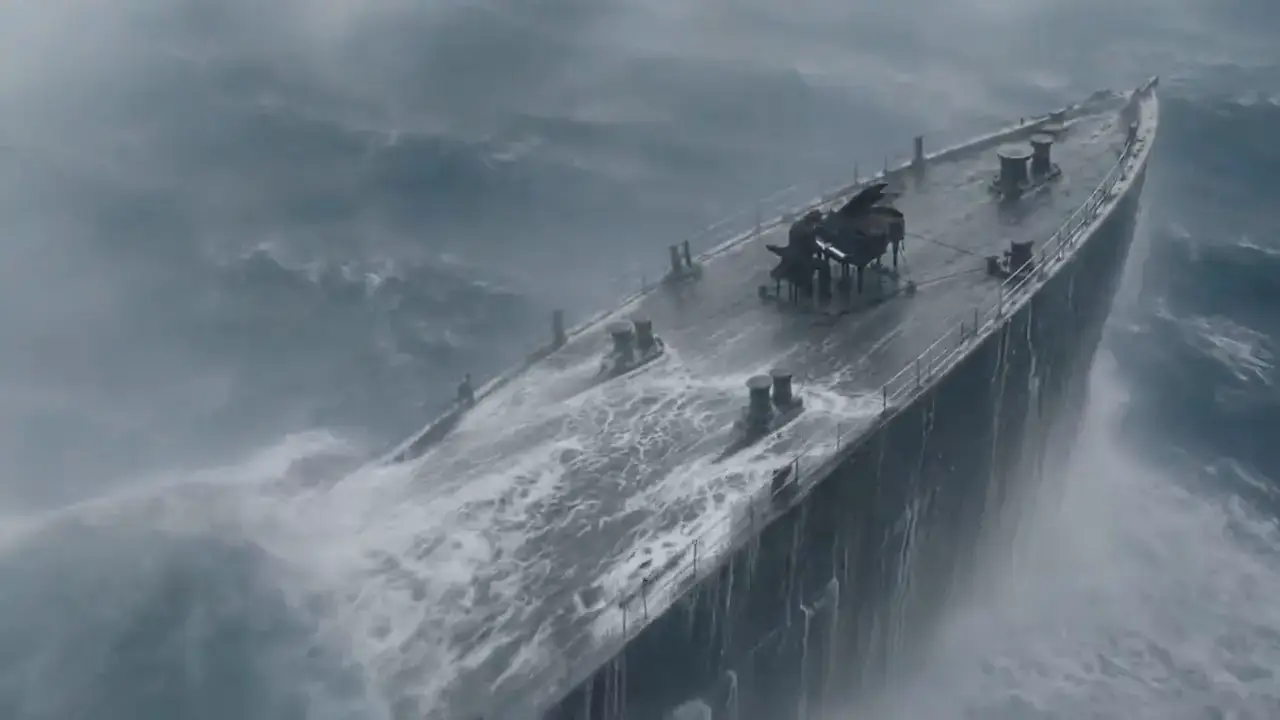
Official Kling 4.0 showcase still used to illustrate a planned scene. It is not a sample output from the prompts below.
8 Kling 4.0 Prompt Templates
These are starting points, not guaranteed outputs or benchmark results. Replace bracketed details with your own subject and brief. Kling announced up to 10 keyframes for Kling 4.0; use them for important visual states rather than adding a frame for every small action.
1. One continuous tracking shot
A [subject] moves through [setting] at [time of day]. One continuous [wide / medium / close] tracking shot follows from [camera position] as [one main action]. Keep [important visual detail] consistent. Natural [ambient sound], no music. End when [clear final beat].
Use when: you want a clean motion study, a location reveal, or a short piece of cinematic B-roll. Keep the path simple: follow, push in, orbit, or pull back—not all four in one clip.
2. Three-beat narrative with key moments
Opening: [show the subject and starting situation]. Middle: [one change or decision]. Ending: [one visible result]. Preserve [character / object / wardrobe] throughout. Use [camera path] to connect the beats. Sound: [dialogue or ambience].
Use when: the clip needs a mini story rather than a static setup. If keyframes are available, assign them to the opening, turning point, and ending image.
3. Product reveal from an image reference
Use the uploaded product image as the design reference. Keep [label, cap, silhouette, color] unchanged. On [surface or setting], a soft [light change] moves across the product while the camera makes one slow [push-in / orbit]. Do not add text or extra objects. Sound: [quiet ambience / no audio].
Use when: packaging, logo placement, or product proportions must remain recognizable. Use a clean reference image and name the visual properties that should stay fixed.
4. Character scene with a controlled camera move
Keep the lead character consistent with [reference image or subject reference]. [Character] [action] in [setting]. Start with a [framing], then make a slow [camera move] while the character [expression or gesture]. Keep the background simple and preserve [identity detail].
Use when: the subject matters more than elaborate choreography. Describe identity anchors and the action separately so changing the motion does not also change the character brief.
5. Dialogue and performance prompt
[Speaker] says, “[short line],” with [emotion and pace]. The camera holds a [framing] as [visible performance cue]. Keep the other character [reaction]. Room tone: [sound]. No music under the line. Preserve natural pauses and let the final expression settle.
Use when: the timing between words, expression, and reaction carries the scene. Keep dialogue short and identify who speaks each line. Review the generated audio and lip movement before publishing.
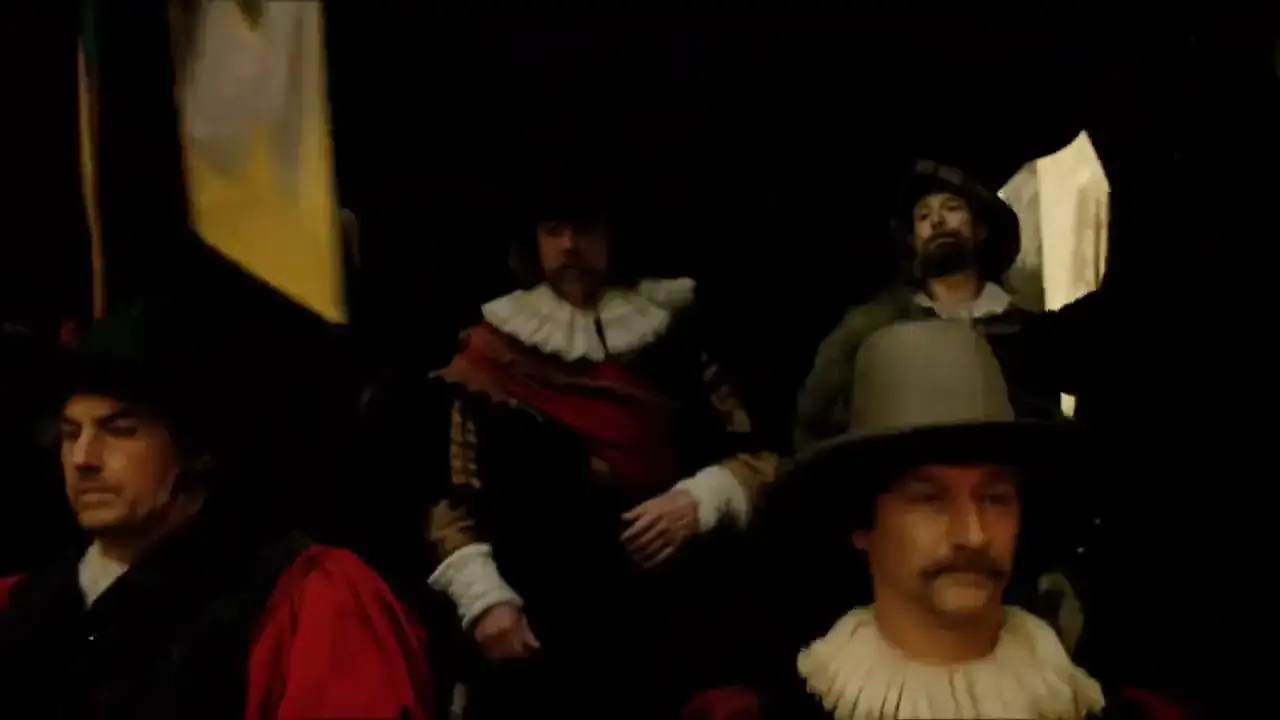
Official Kling audio-visual showcase still; the prompt above is an independent template.
6. Reference-video-inspired action
Use the uploaded video only as a reference for [camera rhythm / movement / pacing]. Create a new scene with [new subject] in [new location]. The subject [action]. Use [one camera instruction]. Do not reproduce [specific identifying elements you want to exclude]. Keep [visual reference] consistent.
Use when: you want to communicate movement or editing rhythm without treating the source clip as a frame-by-frame template. State which properties to borrow and which to replace.
7. Multi-reference scene
Use image A for [character appearance], image B for [wardrobe or prop], and video C for [movement]. In [setting], [subject] [action]. The camera [one move]. Keep [must-preserve detail] unchanged; do not import unrelated objects from the references. Sound: [one short instruction].
Use when: a scene depends on several assets. Assign one job to each input and prioritize them. If two references conflict, say which one takes precedence.

Official Kling showcase still. A prompt should state the role of each reference instead of treating them as interchangeable.
8. Video edit or continuation brief
Continue from the provided clip after [specific moment] / edit the existing clip by [one requested change]. Preserve [subject, motion, lighting, and camera continuity]. Change only [target element or style]. Keep the transition natural and retain [sound or dialogue condition].
Use when: the workflow exposes video editing or extension. Availability can depend on rollout; Kling's announcement says video extension is coming soon, so check the feature in your account before planning around it.
Official Kling showcase still used as a visual reference. It is not an output generated by any prompt above.
How to Refine a Kling 4.0 Prompt
If the result misses the brief, diagnose the miss before rewriting. Ask whether the problem was the subject, action, framing, reference role, timing, or sound. Then change only that part.
| What went wrong | First revision to try |
|---|---|
| Subject changes between beats | Strengthen the identity reference and repeat the few details that matter |
| Camera move feels chaotic | Remove extra movements and specify one start-to-end path |
| Action happens too quickly | Make the order explicit and give the turning point a keyframe |
| Product details drift | Use a clean product reference and list the details to preserve |
| Dialogue feels disconnected | Identify the speaker, shorten the line, and clarify the emotion and pause |
| Clip feels visually busy | Remove secondary actions, background objects, and style instructions that do not affect the shot |
This one-variable revision loop works whether you are writing for Kling 4.0, Kling 3.0, or another video model. It also gives you a useful record: prompt, references, duration, settings, and what you changed between attempts.
Frequently Asked Questions
What is the best prompt structure for Kling 4.0?
Start with the subject and action, then add setting, one camera move, and any key beats. Add reference roles and sound only if they affect the result. A focused brief is easier to revise than a long list of disconnected instructions.
Can Kling 4.0 use keyframes?
Kling announced up to 10 keyframes for Kling 4.0. Use them to mark important visual states, such as the opening composition, a turning point, and the final image. Verify when the keyframe controls are available in the workflow you use.
How many reference images can Kling 4.0 take?
Kling announced up to 15 multimodal references, with separate limits for images, videos, and subjects. Assign a clear role to each asset and check the current interface for exact limits.
Can Kling 4.0 prompts be 8,000 tokens long?
Kling's announcement says the input limit can reach 8,000 tokens, but that is a maximum rather than a recommendation. The best prompt is the shortest one that communicates the scene, constraints, and timing you need. Extra instructions can compete with one another.
Are these Kling 4.0 prompts tested?
They are original prompt templates informed by Kling's announced capabilities, not claims of verified Kling 4.0 output. The full model had not reached general availability as of September 29, 2026, so these examples should be treated as structured starting briefs.
Is Kling 4.0 available now?
As of September 29, 2026, Kling announced the full model for October and limited early access to Kling 4.0 Flash for Ultra Yearly subscribers. See our Kling 4.0 release and feature guide for the latest status and the Kling 4.0 vs Kling 3.0 comparison for the feature differences.
Sources and More Kling 4.0 Guides
See the Kling 4.0 guide and official showcase clips, read about Kling 4.0 features and release timing, or compare Kling 4.0 with Kling 3.0.
作者

文章分類
更多文章
Veo 3.1 Lite Prompt Guide: 20+ Ready-to-Use Prompts for Cinematic AI Video
Learn exactly how to prompt Veo 3.1 Lite for cinematic results. Covers shot types, camera movement, audio, and 20+ copy-paste prompts across genres — no fluff.
Google Veo 3.1 Lite: Half the Cost of Veo 3.1 Fast, Same Speed
Google launched Veo 3.1 Lite on March 31, 2026 — the most affordable model in the Veo family at $0.05/sec for 720p. Here's what it can do, what it can't, and whether it's right for your workflow.

Kling 4.0: Release Date, Features, and Prompt Guide (2026)
Kling 4.0 release date, confirmed features, and prompt tips. See what is in early access, what is coming soon, and how to plan your video workflow.